Using Prompt Variables
Variables make your prompts dynamic. Instead of hardcoding values, you use placeholders that get replaced at runtime with actual data. This guide covers the variable syntax, how Scope detects variables, and how to render them with the SDK.
Variable Syntax
Scope uses double-brace syntax for variables:
Hello, {{name}}! Welcome to {{app_name}}.
Variable naming rules:
- Alphanumeric characters and underscores only
- Case-sensitive (
{{Name}}and{{name}}are different variables) - No spaces inside the braces
Auto-Detection
When you save a prompt version, Scope automatically scans the content and
extracts all {{variable}} placeholders. The detected variables appear in the
version's metadata and are used to:
- Pre-populate the test panel with input fields
- Validate that all required variables are provided at render time
- Display variable names in the version detail view
You don't need to declare variables separately — just use them in your content.
Rendering with the SDK
The SDK's render() method substitutes variables with the values you provide:
- Python
- Ruby
version = client.get_prompt_version("greeting")
# version.content: "Hello, {{name}}! Welcome to {{app_name}}."
# version.variables: ["name", "app_name"]

rendered = version.render(name="Alice", app_name="Scope")
# "Hello, Alice! Welcome to Scope."
version = client.get_prompt_version("greeting")
# version.content: "Hello, {{name}}! Welcome to {{app_name}}."
# version.variables: ["name", "app_name"]

rendered = version.render(name: "Alice", app_name: "Scope")
# "Hello, Alice! Welcome to Scope."
Shorthand Method
You can fetch and render in a single call using render_prompt:
- Python
- Ruby
rendered = client.render_prompt(
    "greeting",
    {"name": "Alice", "app_name": "Scope"},
    label="production"
)
rendered = client.render_prompt(
  "greeting",
  { name: "Alice", app_name: "Scope" },
  label: "production"
)
Missing Variables
If you call render() without providing all required variables, the SDK raises
a MissingVariableError:
- Python
- Ruby
from scope_client.errors import MissingVariableError

try:
    rendered = version.render(name="Alice")
    # Missing: app_name
except MissingVariableError as e:
    print(f"Missing variables: {e.missing_variables}")
begin
  rendered = version.render(name: "Alice")
  # Missing: app_name
rescue ScopeClient::MissingVariableError => e
  puts "Missing variables: #{e.missing_variables}"
end
Variables in the Test Panel
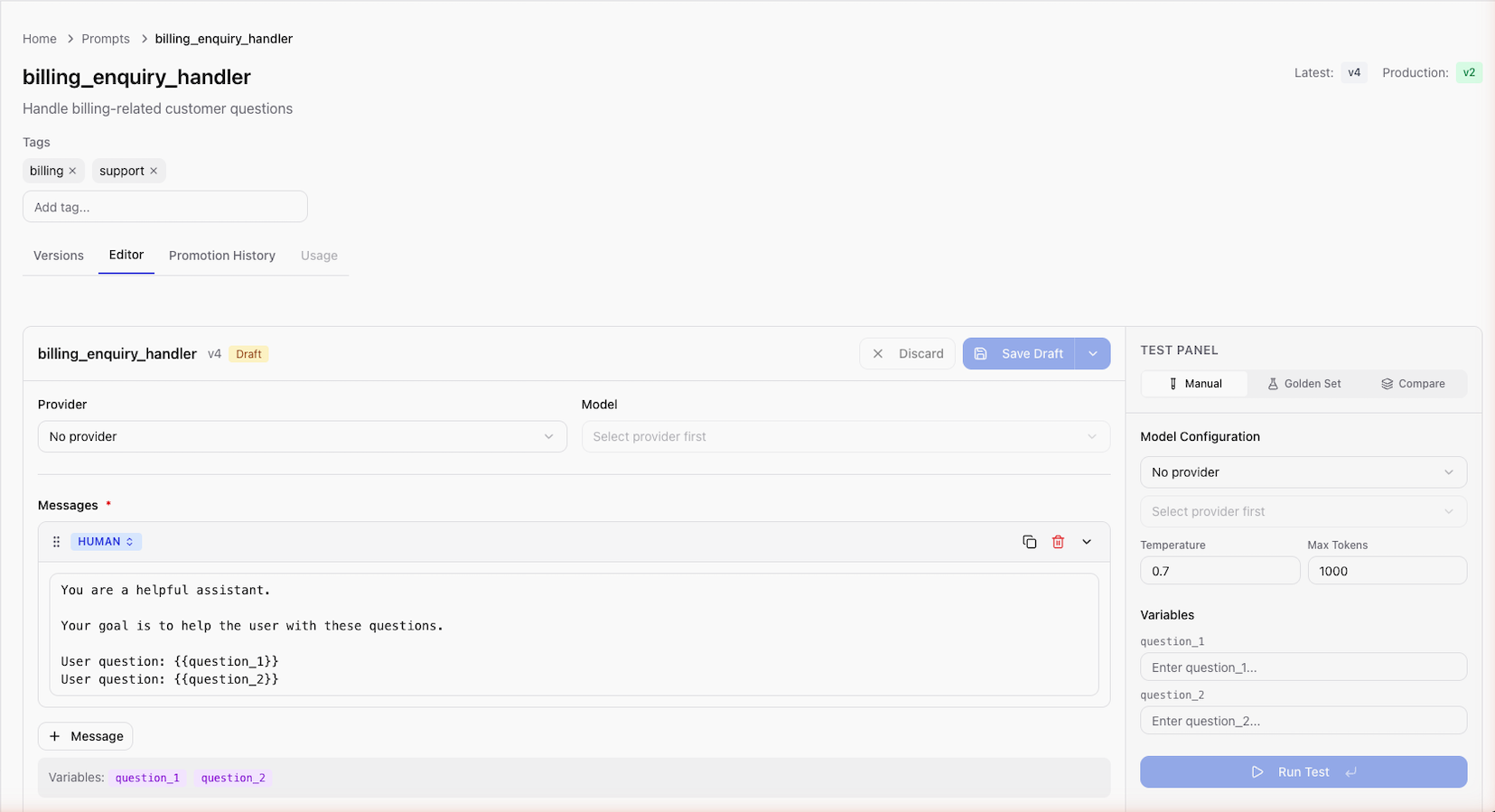
When testing a prompt in the UI:
- Open a prompt version and click Test
- Scope displays an input field for each detected variable
- Fill in values for all variables
- Click Run to execute the prompt with those values
The test panel also shows the resolved content (the prompt after variable substitution) alongside the LLM response.
Best Practices
- Use descriptive names —
{{customer_email}}is clearer than{{e}} - Keep variable count manageable — prompts with many variables are harder to test and maintain
- Document expected formats — if a variable expects a specific format (e.g., JSON, date), note it in the prompt description
- Use consistent naming conventions — stick to
snake_caseacross all prompts
Next Steps
- Testing Prompts — test prompts with variable values
- SDK Prompt Management — rendering, metadata, and properties
- SDK Error Handling — handling missing variable errors