Configure Providers
Providers connect Scope to LLM services like OpenAI, Anthropic, Google, and AWS Bedrock. This guide covers adding providers, testing connections, managing models, and updating configurations.
Supported Providers
Scope supports the following LLM providers:
| Provider | Description |
|---|---|
| OpenAI | GPT-4o, GPT-4, GPT-3.5 Turbo, and other OpenAI models |
| Anthropic | Claude 3 Opus, Sonnet, Haiku, and other Anthropic models |
| Gemini Pro, Gemini Ultra, and other Google AI models | |
| AWS Bedrock | Access to multiple model providers through AWS Bedrock |
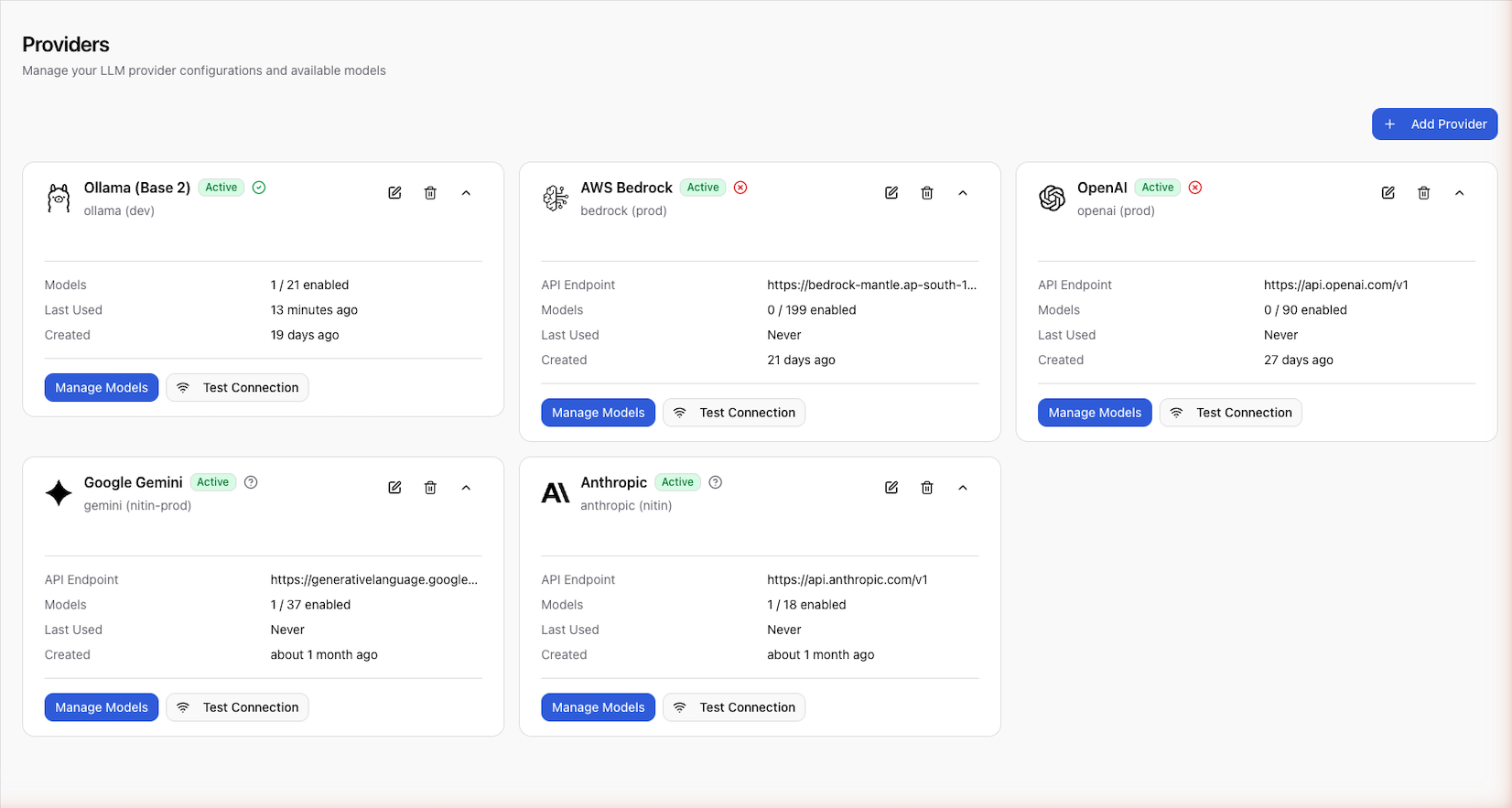
Add a Provider
- Go to Settings > Providers
- Click Add Provider
- Select the provider from the available list
- Configure the provider:
- Display name — a human-readable label (e.g., "OpenAI Production")
- API key — your provider's API key
- Config name (optional) — defaults to
default. Use a custom name to create multiple configurations of the same provider (e.g.,production,staging) - Base URL (optional) — custom API endpoint for proxies or self-hosted deployments
- Click Test Connection to verify the API key
- Save the provider
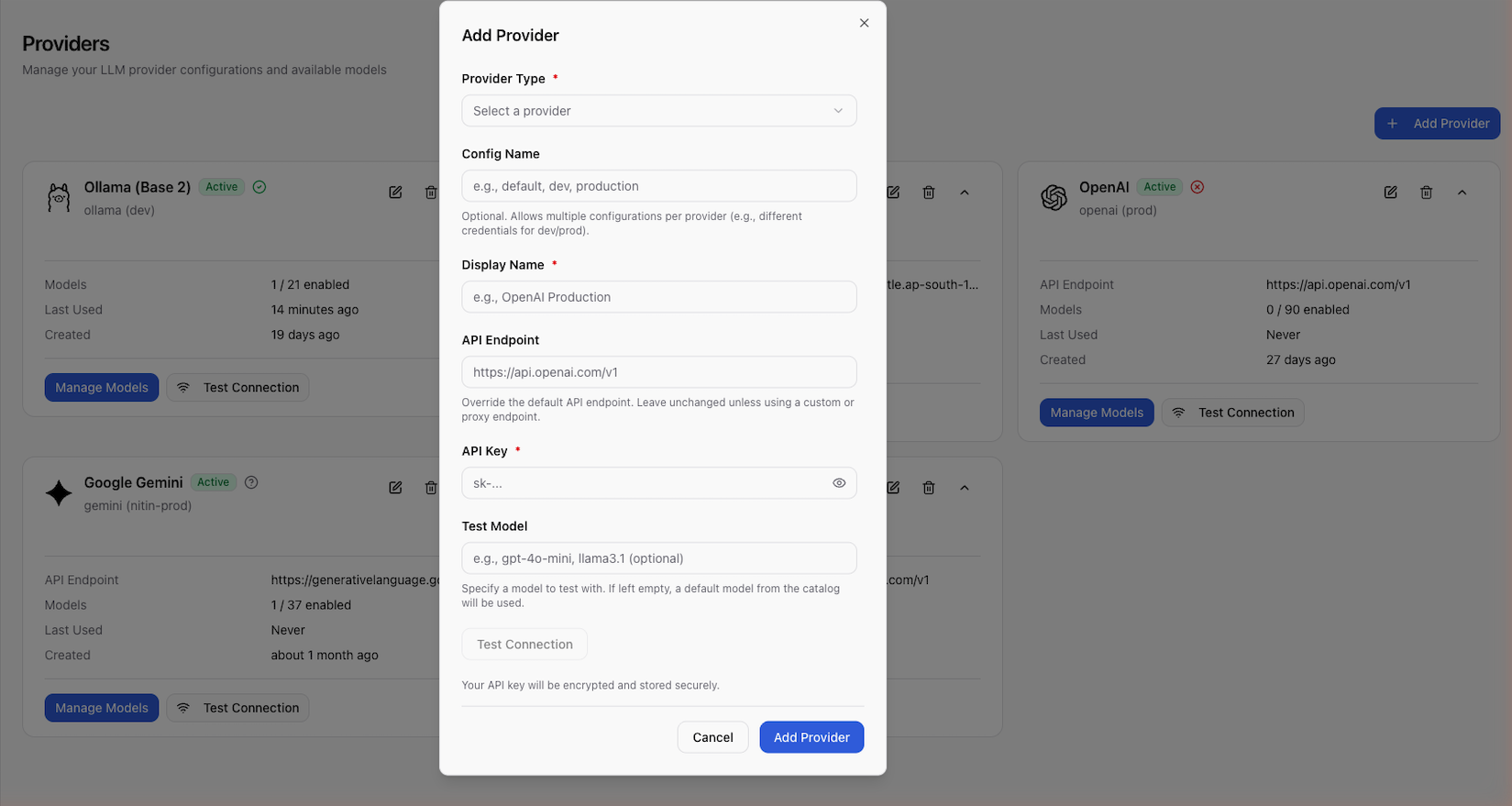
Provider API keys are stored encrypted. Only users with provider management permissions can view or update provider configurations.
Test a Connection
Before saving, always test the connection to verify your API key is valid:
- Fill in the provider name and API key
- Click Test Connection
- Scope makes a lightweight validation request to the provider
- A success or failure message appears
Enable Models
After adding a provider, enable the specific models you want to use:
- Open the provider from the provider list
- Click Available Models to see the model catalog
- Enable the models you need (e.g.,
gpt-4o,gpt-3.5-turbo) - Optionally set a custom display name for each model
Enabled models appear in the test panel's model selector and can be used for prompt execution.
Model Properties
Each model has the following properties:
| Property | Description |
|---|---|
external_model_id | The provider's model identifier (e.g., gpt-4o) |
display_name | Your custom label for the model |
enabled | Whether the model is available for use |
capabilities | Feature flags: function calling, vision, streaming, JSON mode |
context_window | Maximum input token count |
max_output_tokens | Maximum output token count |
input_cost_per_1m | Cost per million input tokens |
output_cost_per_1m | Cost per million output tokens |
Update a Provider
To modify a provider's settings:
- Open the provider from Settings > Providers
- Update the fields:
- Display name — change the label
- Enabled — toggle the provider on or off
- Base URL — update the custom endpoint
- Save changes
To update the API key, you'll need to delete the existing provider and create a new one, or use the API to update it directly.
Disable or Delete a Provider
- Disable — toggle the provider off in settings. The configuration is preserved but the provider won't appear in the test panel's provider selector
- Delete — permanently remove the provider and all its model configurations
Multiple Configurations
You can configure the same provider type multiple times using different
config_name values. This is useful for:
- Separating production and staging API keys
- Using different base URLs for proxy configurations
- Managing separate rate limits or billing accounts