Create & Manage Prompts
Prompts are the central resource in Scope. This guide covers the full lifecycle — creating prompts, editing metadata, organizing with tags, and deleting prompts you no longer need.
Create a Prompt
- Click New Prompt from the prompt list
- Enter a unique name (e.g.,
customer-support-reply) - Write your prompt content in the editor — use
{{variable}}syntax for dynamic values - Optionally add a description and tags
- Click Create
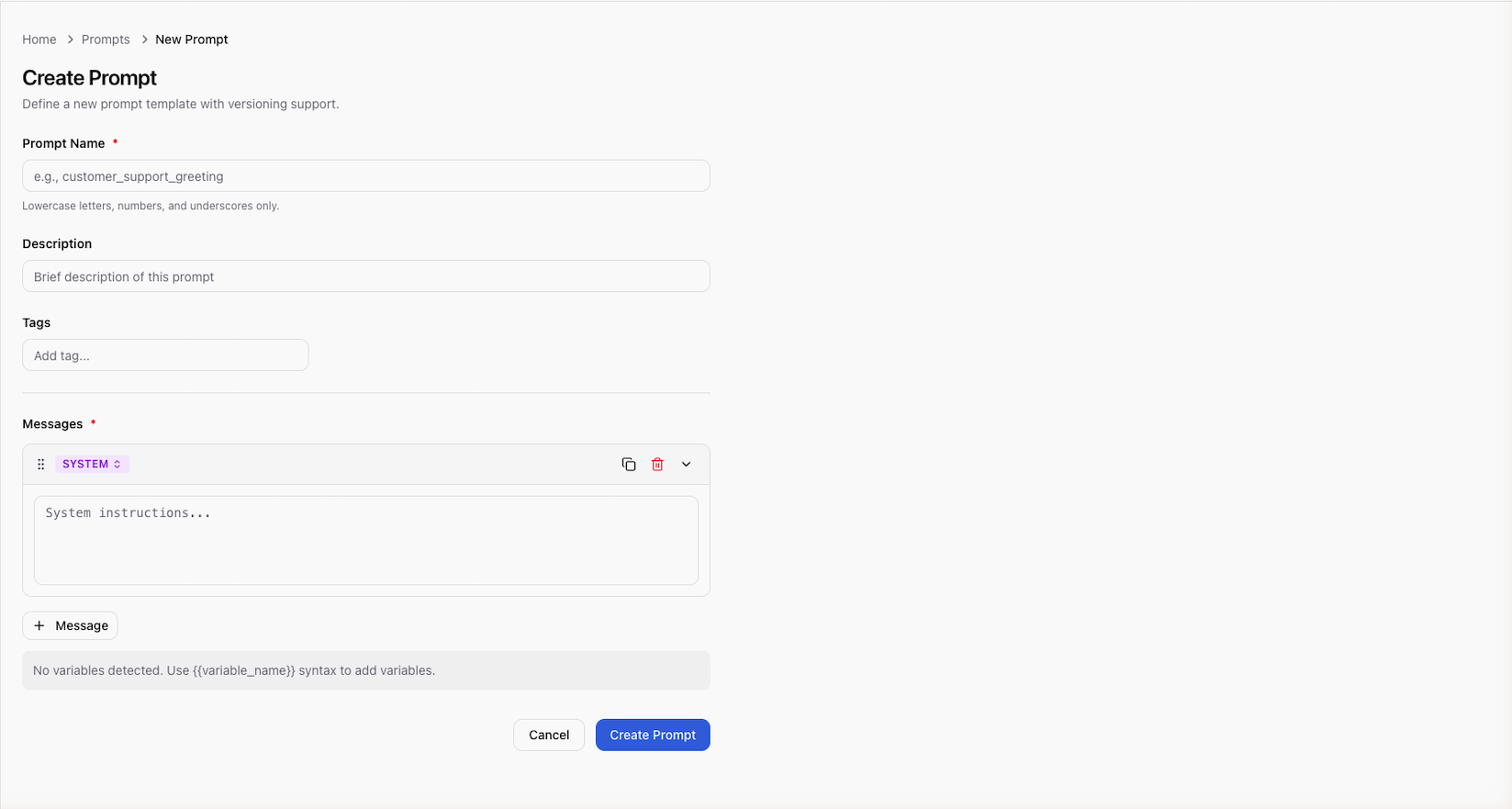
Scope creates the prompt with an initial version (v1) in draft status.
Variables like {{customer_name}} are automatically detected from the content.
Choose descriptive, hyphenated names for prompts (e.g., order-summary,
code-review). The name is used to fetch the prompt via SDK and API, so it
should be stable and meaningful.
View and Browse Prompts
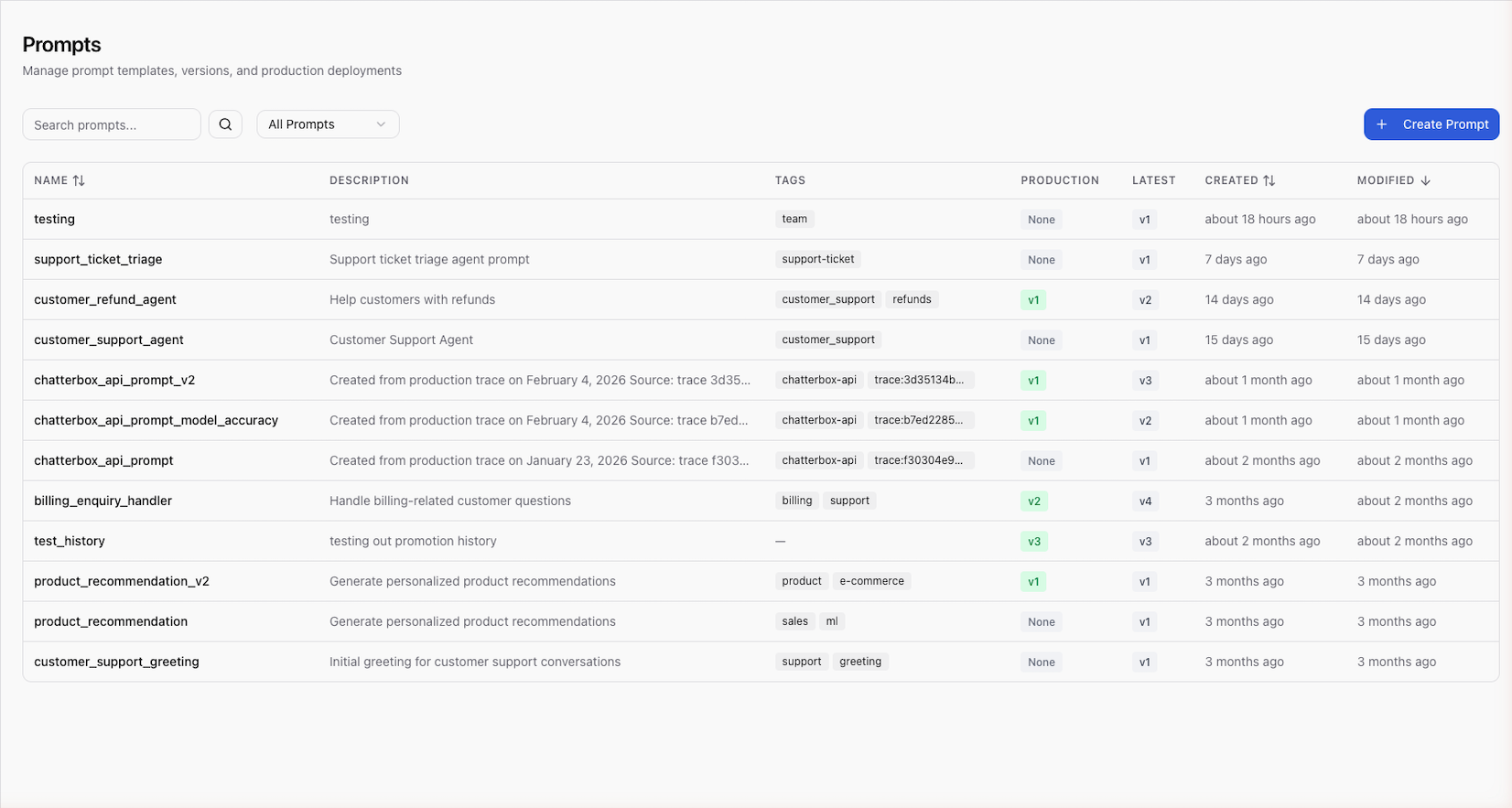
The prompt list shows all prompts in your workspace. You can:
- Search by name or description using the search bar
- Filter by tags to narrow results
- Filter by status — show only prompts with a production version or drafts only
- Sort by name, creation date, or last updated
Each prompt card displays the name, description, latest version number, production version (if any), and tags.
Edit Prompt Metadata
To update a prompt's name, description, or tags:
- Open the prompt from the list
- Click the prompt name or metadata area to edit
- Update the fields:
- Name — must remain unique across your workspace
- Description — optional summary of the prompt's purpose
- Tags — add or remove tags for organization
- Save your changes
Editing metadata does not create a new version. To change the prompt content, create a new version instead.
Organize with Tags
Tags help you categorize and filter prompts. Common tagging strategies:
| Strategy | Examples |
|---|---|
| By team | engineering, marketing, support |
| By use case | chat, summarization, extraction |
| By status | experimental, stable, deprecated |
| By product | billing, onboarding, notifications |
You can filter the prompt list by one or more tags. Prompts must match all specified tags (AND logic).
Delete a Prompt
Deleting a prompt removes it and all its versions. This action cannot be undone. Make sure no applications are actively fetching this prompt before deleting it.
To delete a prompt:
- Open the prompt
- Access the prompt's settings or actions menu
- Click Delete
- Confirm the deletion
Next Steps
- Working with Versions — create and manage prompt versions
- Using Prompt Variables — template syntax and rendering
- Testing Prompts — test prompts before promoting