Working with Versions
Every prompt in Scope has one or more versions. Versions let you iterate on prompt content without affecting what's currently running in production. This guide covers creating, editing, archiving, and navigating versions.
Version Basics
When you create a prompt, Scope creates v1 automatically. Each subsequent
version increments the number (v2, v3, ...). Versions have three possible
statuses:
| Status | Editable | Servable | Description |
|---|---|---|---|
| Draft | Yes | By request | Work in progress. Can be modified and tested. |
| Published | No | Yes (default) | The active production version. |
| Archived | No | No | Preserved for history. Cannot be served. |
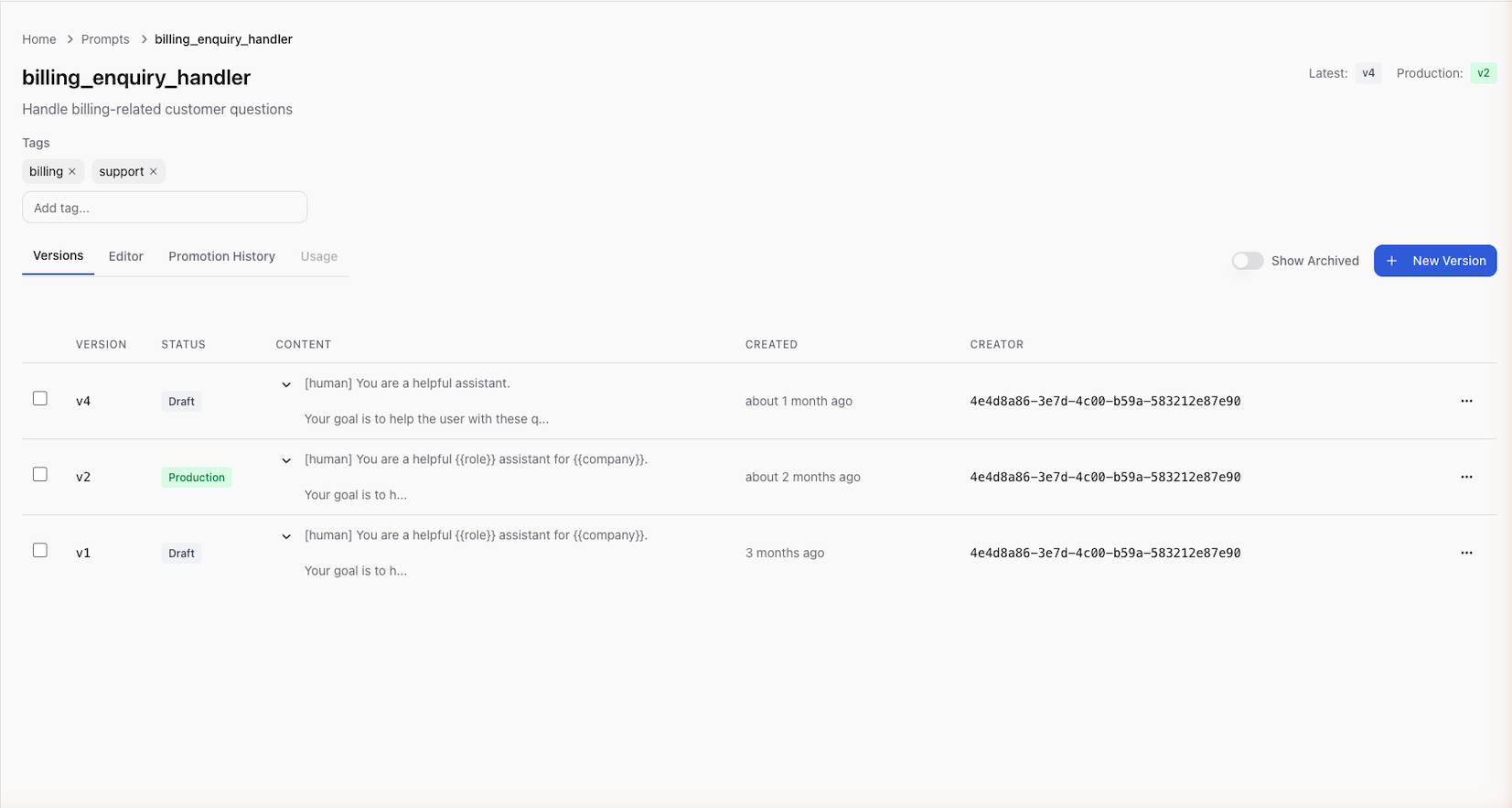
Create a New Version
- Open the prompt from the prompt list
- Click New Version
- Choose how to initialize the content:
- Blank — start from scratch
- Copy from version — duplicate an existing version's content as a starting point
- Edit the content in the editor
- Save the version
The new version is created in draft status with the next sequential version number.
Copying from a previous version is useful when you want to make incremental changes. The original version remains unchanged.
Edit a Draft Version
Only draft versions can be edited. To modify a draft:
- Open the prompt and select the draft version
- Edit the content in the editor
- Save your changes
Variables are re-detected automatically when you save.
Published and archived versions are immutable. To change a published prompt, create a new version with the updated content and promote it.
Archive a Version
Archiving removes a version from active use while preserving it for history.
- Open the prompt and select the version to archive
- Click Archive
- Confirm the action
Rules:
- Draft versions can be archived
- Published versions cannot be archived directly — promote a different version first, then archive the previous one
- Archived versions remain visible when you enable the Include archived filter
Unarchive a Version
To bring an archived version back to draft status:
- Open the prompt and enable Include archived in the version list
- Select the archived version
- Click Unarchive
The version returns to draft status and can be edited and tested again.
Navigate Version History
The version list on a prompt shows all versions with their:
- Version number (e.g.,
v3) - Status badge (draft, published, archived)
- Creation date and author
- Content preview
Use the version list to compare different iterations of your prompt and track how it has evolved over time.
Next Steps
- Promote to Production — move a tested version to production
- Testing Prompts — test versions before promoting
- Versioning (Platform) — version data model and SDK resolution