Queries
The Queries tab provides deep query-level analysis with powerful filtering capabilities. Use it to identify slow queries, analyze performance patterns, and drill down into specific query behavior.
Dashboard Features
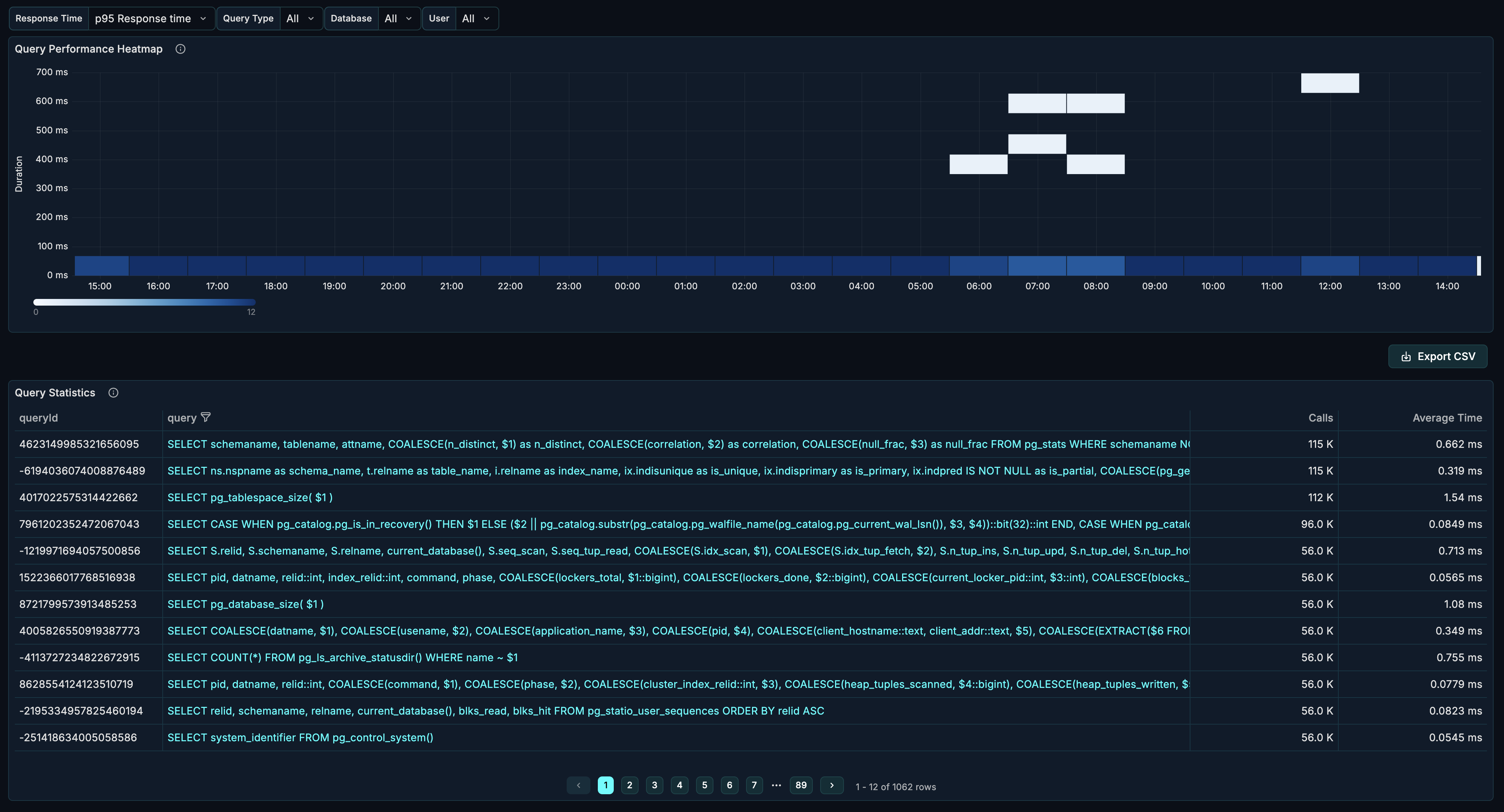
The Queries tab offers:
- Flexible Filtering - Filter by database, user, query type, and response time percentile
- Query Heatmap - Visualize query performance distribution over time
- Query Stats Table - Detailed metrics for individual queries
Filters
The section provides four filters to narrow your analysis.

Response Time Percentile
Select which response time percentile to display in the heatmap.
| Option | Description |
|---|---|
| p50 Response time | Median response time (50th percentile) |
| p90 Response time | 90th percentile - 90% of queries are faster |
| p95 Response time | 95th percentile - typical SLA target |
| p99 Response time | 99th percentile - worst-case performance |
How to use:
- Start with p95 for typical SLA monitoring
- Use p50 to understand normal behavior
- Use p99 to catch tail latency issues
- Compare percentiles to understand response time distribution
Query Type
Filter queries by SQL statement type.
| Option | Description |
|---|---|
| All | Show all query types |
| SELECT | Read queries |
| INSERT | Insert operations |
| UPDATE | Update operations |
| DELETE | Delete operations |
| CREATE | DDL statements |
| BEGIN | Transaction starts |
| COMMIT | Transaction commits |
| ROLLBACK | Transaction rollbacks |
How to use:
- Use All for overall view
- Filter to SELECT to analyze read performance
- Filter to INSERT/UPDATE/DELETE for write analysis
- Check ROLLBACK frequency to understand transaction failures
Database
Filter queries to a specific database.
How to use:
- Use All to see cluster-wide patterns
- Select specific database for focused analysis
- Compare query patterns across databases
User
Filter queries by the PostgreSQL user/role executing them.
How to use:
- Identify which users are running expensive queries
- Compare application vs admin query patterns
- Isolate queries from specific services
Queries Heatmap
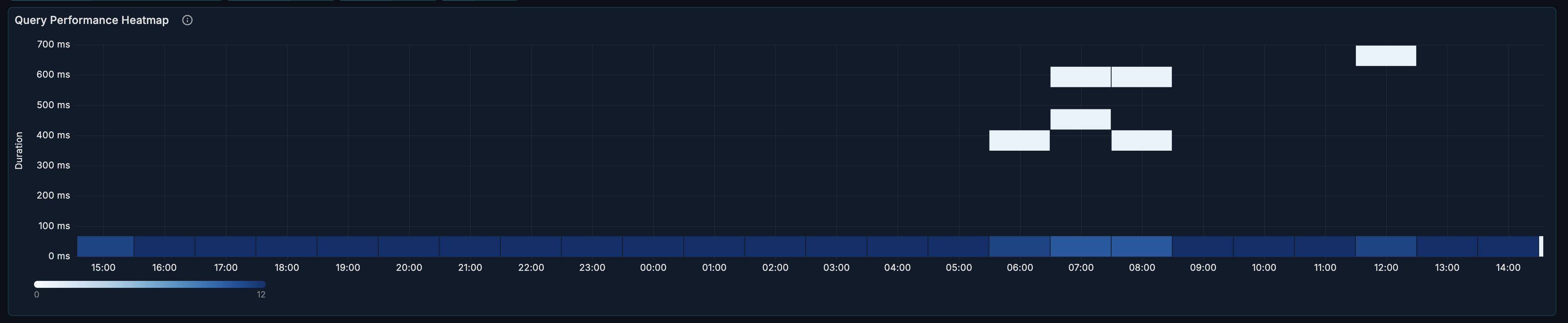
The heatmap visualization shows query response time distribution over time.
Reading the Heatmap
- X-axis: Time
- Y-axis: Response time buckets
- Color intensity: Number of queries in that bucket
Interpretation:
- Dense color at low Y values = most queries are fast
- Color spread upward = response time variance
- Spikes at high Y values = slow query incidents
- Horizontal bands = consistent performance patterns
Common Patterns
| Pattern | Meaning | Action |
|---|---|---|
| Tight band at bottom | Consistent fast performance | Healthy - maintain current state |
| Spreading upward over time | Performance degradation | Investigate index/bloat issues |
| Periodic spikes | Scheduled jobs or traffic patterns | Review job timing and impact |
| Sudden vertical spread | Incident occurring | Immediate investigation needed |
| Two distinct bands | Bimodal query performance | May have two query categories |
Query Stats Table
The stats table provides detailed metrics for each query.
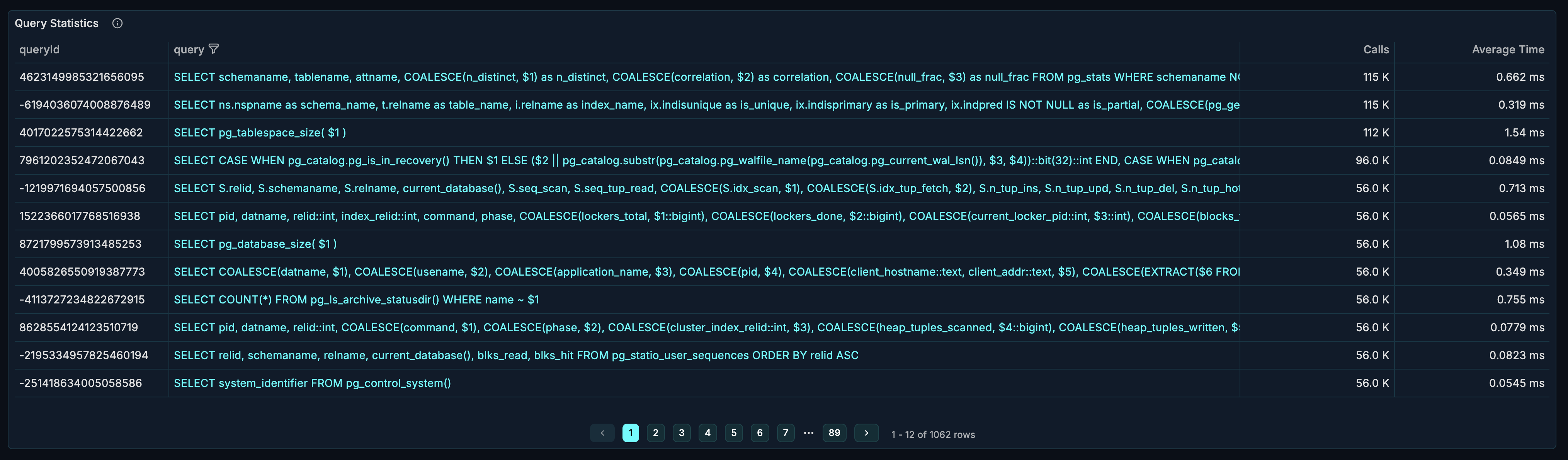
Table Columns
| Column | Description |
|---|---|
| Query | The normalized SQL query text |
| Query ID | Unique identifier for the query |
| Calls | Number of times executed |
| Average Time | Mean execution time |
Sorting and Analysis
Find most frequent queries:
- Sort by "Calls" descending
- These queries have the most impact on overall load
- Even small improvements yield significant gains
Find slowest queries:
- Sort by "Average Time" descending
- Focus optimization on these first
- Check if they're missing indexes
Calculate impact:
- Impact = Calls × Average Time
- High-call + slow = highest priority
- Low-call + slow = may be acceptable
Drill-Down
Click on a query to access detailed analysis panels:
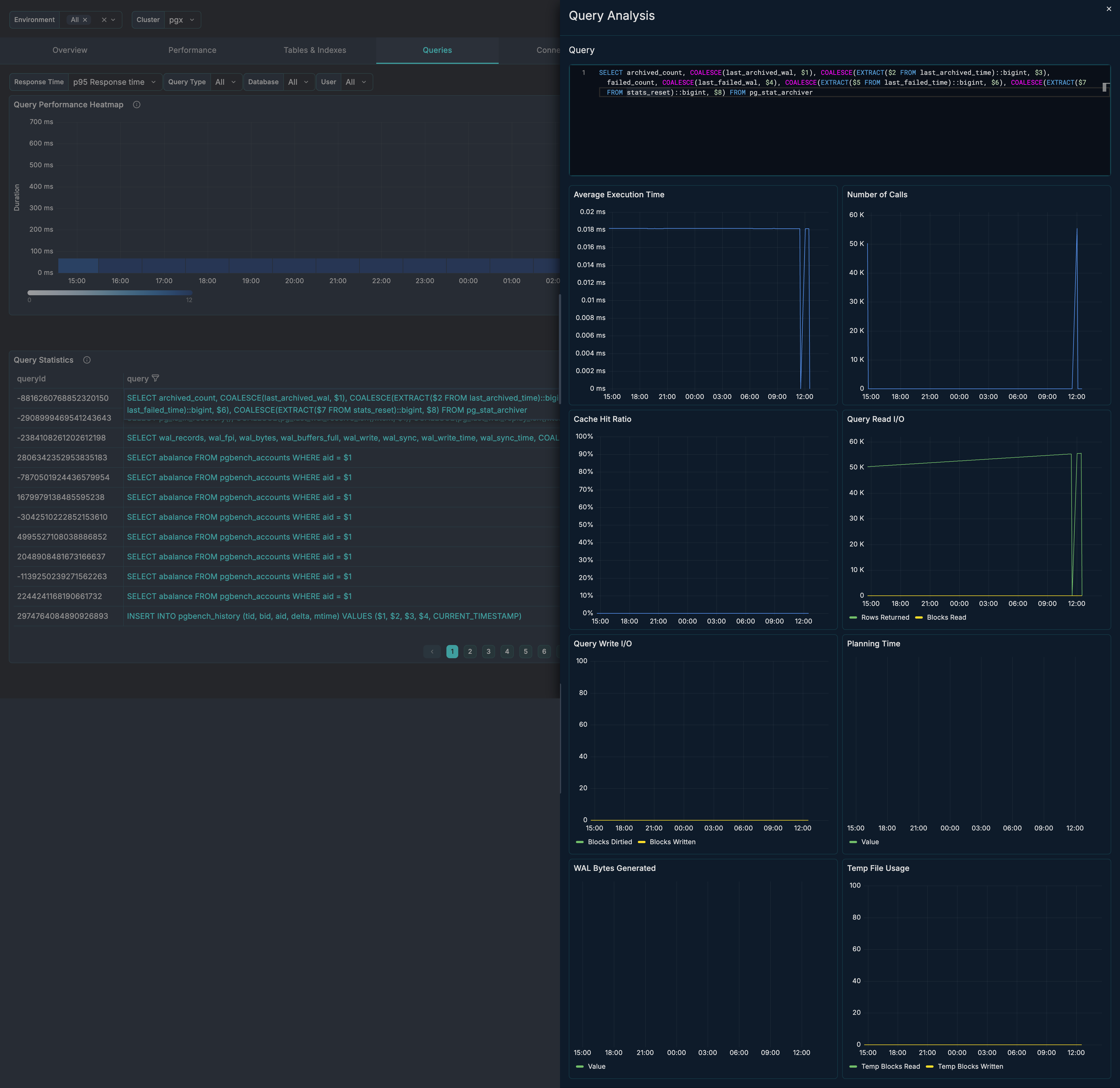
- Average Execution Time - Time-series of response time
- Number of Calls - Call frequency over time
- Cache Hit Ratio - Buffer cache efficiency for this query
- Read I/O - Rows returned and blocks read
- Write I/O - Blocks dirtied and written
- Planning Time - Query planning overhead
- WAL Bytes Generated - Write-ahead log impact
- Temp File Usage - Temporary file activity
Use Cases
Finding Problem Queries
- Set Response Time to p95
- Set Query Type to All
- Look for queries with high Average Time
- Click to drill down into specific query
- Analyze cache hit ratio and I/O patterns
- Check for missing indexes or optimization opportunities
Analyzing Read Workload
- Set Query Type to SELECT
- Review heatmap for response time distribution
- Sort stats table by Calls to find hottest queries
- Check if frequently-run queries are well-optimized
- Look for sequential scans that need indexes
Analyzing Write Workload
- Set Query Type to INSERT, UPDATE, or DELETE
- Review call patterns and timing
- Check WAL Bytes Generated for write impact
- Look for bulk operations causing load
- Consider batching or off-peak scheduling
User-Based Analysis
- Select specific User from dropdown
- Compare query patterns between users
- Identify which application/service generates load
- Use for capacity planning per service
SLA Monitoring
- Set Response Time to your SLA percentile (e.g., p95)
- Watch heatmap for breaches
- Identify queries causing SLA violations
- Create alerts based on response time thresholds
Post-Incident Analysis
- Set time range to incident period
- Review heatmap for anomalies
- Identify queries that degraded
- Compare with normal period
- Document root cause
Query Analysis Deep Dive
When you click on a query in the stats table, you get access to detailed time-series panels:
Average Execution Time
Track how the query's response time varies over time. Look for:
- Degradation trends
- Correlation with load
- Impact of optimizations
Cache Hit Ratio
Monitor buffer cache efficiency for this specific query:
- High ratio (> 99%) = good caching
- Low ratio = disk I/O overhead
- Consider memory tuning or query optimization
Read I/O Analysis
- Rows Returned - Data returned to client
- Blocks Read - Disk blocks accessed
- High blocks/low rows = inefficient query
Write I/O Analysis
- Blocks Dirtied - Pages modified
- Blocks Written - Pages flushed to disk
- High values indicate write-heavy operations
Planning Time
Query planning overhead:
- High planning time = complex query
- Consider prepared statements
- May indicate statistics issues
WAL Impact
Write-ahead log bytes generated:
- High values = significant durability overhead
- Consider batching writes
- May impact replication lag
Temp File Usage
Temporary file activity:
- Indicates memory pressure
- Query may need more
work_mem - Consider query optimization
Related Metrics
The Queries section uses these metrics from the Metrics Reference:
| Panel | Primary Metrics |
|---|---|
| Heatmap | pg_statement_stats.total_time_ms, pg_statement_stats.calls |
| Stats Table | pg_statement_stats.calls, pg_statement_stats.avg_time_ms |
| Execution Time | pg_statement_stats.avg_time_ms |
| Cache Hit | pg_statement_stats.shared_blks_hit, pg_statement_stats.shared_blks_read |
| Read I/O | pg_statement_stats.rows, pg_statement_stats.shared_blks_* |
| Write I/O | pg_statement_stats.shared_blks_dirtied, pg_statement_stats.shared_blks_written |
| Planning Time | pg_statement_stats.total_plan_time_ms |
| WAL Bytes | pg_statement_stats.wal_bytes |
| Temp Files | pg_statement_stats.temp_blks_read, pg_statement_stats.temp_blks_written |
Related Guides
- Performance - Higher-level performance view
- Tables & Indexes - Optimize tables and indexes
- Locks & Waits - Investigate blocking issues