PostgreSQL Tables & Indexes
The Tables & Indexes tab provides detailed insights into table health, index effectiveness, and storage optimization opportunities. Use it to identify bloated tables, underutilized indexes, and maintenance needs.
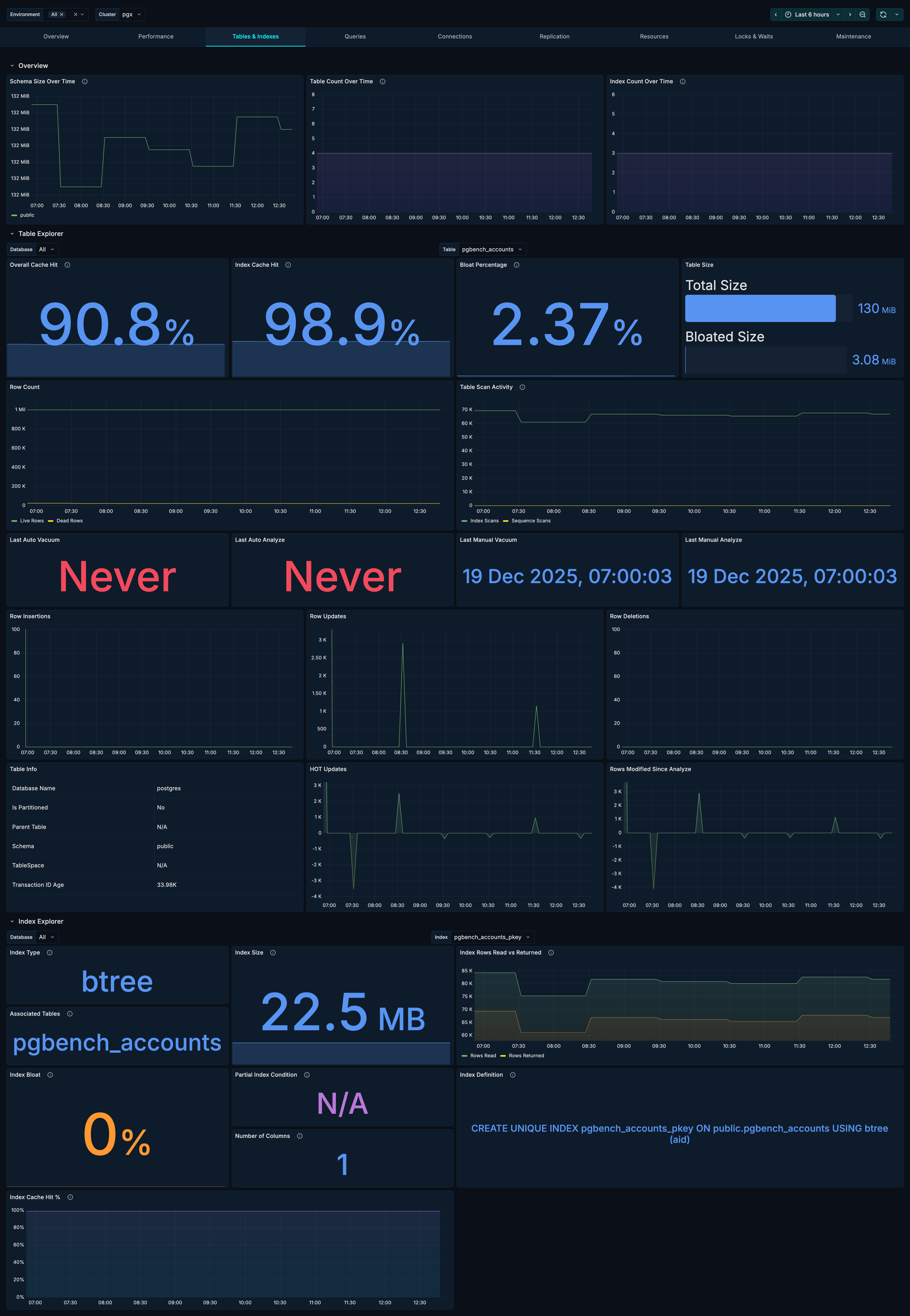
pgX is the PostgreSQL monitoring app in base14 Scout. Check out base14 pgX.
Sections
The Tables & Indexes tab is organized into three sections:
- Overview - High-level table and index counts
- Table Explorer - Deep dive into individual table metrics
- Index Explorer - Detailed index analysis
Overview Section
The Overview section provides cluster-wide table and index metrics.
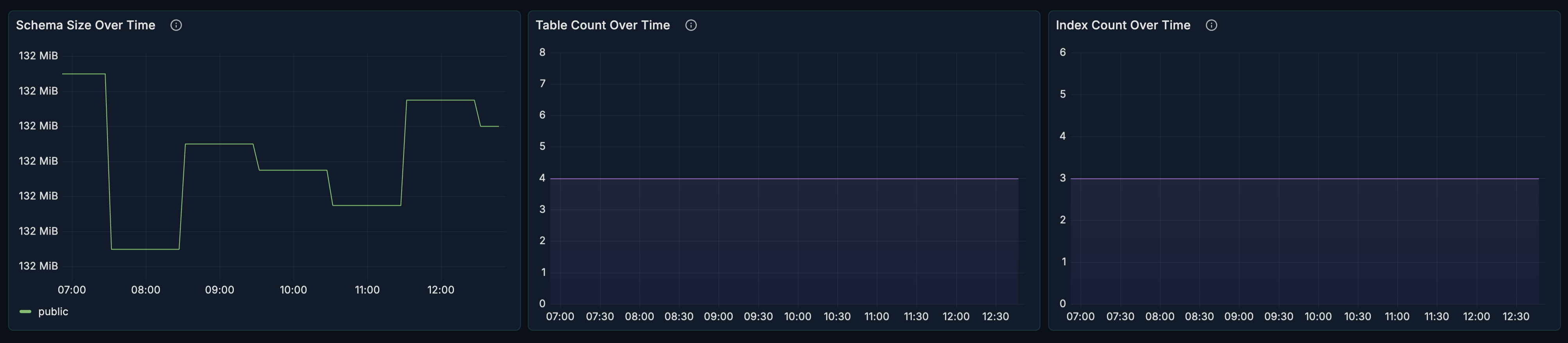
Schema Size
What it shows: Total size of schemas over time.
How to use it:
- Track storage growth trends
- Identify schemas consuming most space
- Plan capacity and cleanup
Table Count
What it shows: Number of tables over time.
How to use it:
- Track schema evolution
- Detect unexpected table creation
- Monitor temporary table patterns
Index Count
What it shows: Number of indexes over time.
How to use it:
- Track index growth
- Ensure indexes are being created as expected
- Detect index sprawl
Table Explorer Section
The Table Explorer allows you to drill down into individual table metrics. This section is collapsed by default - click to expand.

Filters
| Filter | Description |
|---|---|
| Database | Select the database to explore |
| Table | Select the specific table to analyze |
Key Stats Row
Four stat panels showing critical table health indicators:
Overall Cache Hit Ratio
What it shows: Percentage of reads served from buffer cache.
Healthy range: > 99% for frequently accessed tables.
When to investigate:
- Cache hit ratio below 95%
- Sudden drops in cache hit ratio
- Tables with unexpectedly low ratios
Index Cache Hit Ratio
What it shows: Percentage of index reads from cache vs disk.
Healthy range: > 99% for indexed queries.
When to investigate:
- Low index cache hits indicate memory pressure
- May need to increase
shared_buffers - Consider index optimization
Bloat Percentage
What it shows: Estimated wasted space due to dead tuples.
Healthy range: < 20% for most tables.
When to investigate:
- Bloat > 20% - consider VACUUM
- Bloat > 50% - consider VACUUM FULL or pg_repack
- Rapidly increasing bloat
Table Size
What it shows: Current table size as a bar gauge.
How to use it:
- Quick visual reference for table size
- Compare relative sizes across tables
- Track growth over time
Row Metrics
Row Count
What it shows: Live and dead row counts over time.
How to interpret:
- Growing dead rows = vacuum falling behind
- Sudden live row drops = mass deletions
- Stable ratios = healthy maintenance
Table Scan Activity
What it shows: Sequential scans vs index scans.
What to look for:
- High sequential scans on large tables = missing indexes
- All index scans = good index coverage
- Mix depends on query patterns
Vacuum & Analyze Stats
Four panels showing maintenance timestamps:
| Panel | Description |
|---|---|
| Last Auto Vacuum | When autovacuum last ran |
| Last Auto Analyze | When autoanalyze last ran |
| Last Manual Vacuum | When manual VACUUM was run |
| Last Manual Analyze | When manual ANALYZE was run |
When to investigate:
- Very old timestamps indicate maintenance issues
- Frequent manual runs may indicate autovacuum tuning needed
- Missing autovacuum runs on busy tables
Row Activity
Three time-series panels showing row operations:
Row Insertions
What it shows: Insert rate over time.
How to use it:
- Track data ingestion patterns
- Identify bulk load operations
- Correlate with application behavior
Row Updates
What it shows: Update rate over time.
How to use it:
- Track update-heavy workloads
- Identify update storms
- Plan for bloat management
Row Deletions
What it shows: Delete rate over time.
How to use it:
- Track data purge patterns
- Identify mass delete operations
- Plan vacuum scheduling
Additional Table Metrics
Table Info
What it shows: Table metadata including schema, tablespace, and partitioning info.
HOT Updates
What it shows: Heap-Only Tuple updates over time.
Why it matters:
- HOT updates are more efficient (no index update needed)
- High HOT ratio = good fillfactor configuration
- Low HOT ratio = consider adjusting fillfactor
Rows Modified Since Analyze
What it shows: Number of rows changed since last ANALYZE.
Why it matters:
- High values may indicate stale statistics
- Query planner uses statistics for optimization
- May need more frequent ANALYZE
Index Explorer Section
The Index Explorer allows you to analyze individual indexes. This section is collapsed by default - click to expand.
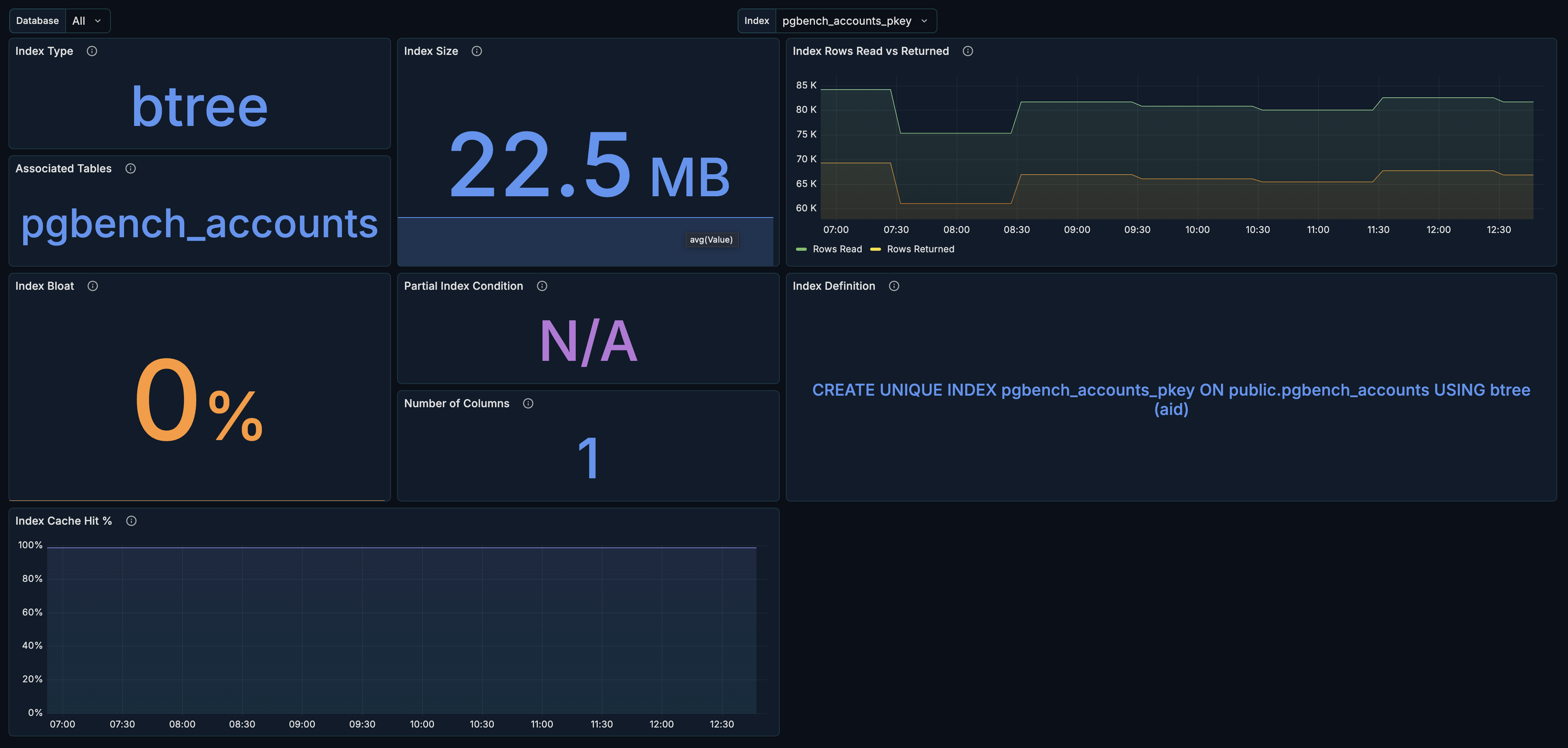
Filters
| Filter | Description |
|---|---|
| Database | Select the database to explore |
| Index | Select the specific index to analyze |
Index Metadata
Index Type
What it shows: The index access method (btree, hash, gin, gist, etc.).
| Type | Best For |
|---|---|
| btree | General purpose, range queries, sorting |
| hash | Equality comparisons only |
| gin | Full-text search, arrays, JSONB |
| gist | Geometric data, full-text search |
| brin | Very large tables with natural ordering |
Table Association
What it shows: The table this index belongs to.
Index Size
What it shows: Current index size.
How to use it:
- Monitor index growth
- Identify oversized indexes
- Plan storage capacity
Index Performance
Rows Read vs Returned
What it shows: Index efficiency over time.
How to interpret:
- Rows read ≈ rows returned = efficient index
- High read/low return = index scanning too much data
- Consider more selective indexes
Index Bloat Percentage
What it shows: Estimated wasted space in the index.
Healthy range: < 30% for most indexes.
When to investigate:
- Bloat > 30% - consider REINDEX
- Bloat > 50% - definite reindex needed
- Rapidly increasing bloat
Index Cache Hit Percentage
What it shows: Cache hit ratio for this specific index.
Healthy range: > 99% for frequently used indexes.
Index Definition
Partial Index Condition
What it shows: The WHERE clause for partial indexes.
Why it matters:
- Partial indexes are smaller and more efficient
- Verify the condition matches your query patterns
Number of Columns
What it shows: How many columns the index covers.
Why it matters:
- Single-column vs multi-column index strategy
- Covering indexes reduce table lookups
Index Definition
What it shows: The full CREATE INDEX statement.
How to use it:
- Understand index structure
- Copy for documentation or recreation
- Verify index configuration
Use Cases
Finding Bloated Tables
- Open the Tables & Indexes section
- Expand Table Explorer
- Check Bloat Percentage for each table
- Tables > 20% bloat need attention
- Schedule VACUUM or VACUUM FULL as needed
Identifying Missing Indexes
- Open Table Explorer for a table
- Check Table Scan Activity
- High sequential scans on large tables = missing index
- Review query patterns for that table
- Create appropriate indexes
Index Health Check
- Open Index Explorer
- Review each index:
- Is it being used? (Rows Read > 0)
- Is it bloated? (< 30% bloat)
- Is it cached? (> 99% cache hit)
- Consider dropping unused indexes
- Rebuild bloated indexes
Vacuum Scheduling
- Check Vacuum Stats across tables
- Identify tables with stale vacuums
- Review Row Activity for high-churn tables
- Adjust autovacuum settings or schedule manual vacuums
Related Metrics
The Tables & Indexes section uses these metrics from the Metrics Reference:
| Panel | Primary Metrics |
|---|---|
| Schema Size | pg_table_stats.size_bytes |
| Table/Index Count | pg_table_info, pg_index_info |
| Cache Hit Ratios | pg_table_stats.heap_blks_hit, pg_table_stats.heap_blks_read |
| Bloat | pg_table_stats.bloat_bytes, pg_index_stats.bloat_bytes |
| Row Counts | pg_table_stats.n_live_tup, pg_table_stats.n_dead_tup |
| Scan Activity | pg_table_stats.seq_scan, pg_table_stats.idx_scan |
| Vacuum Stats | pg_table_stats.last_vacuum, pg_table_stats.last_autovacuum |
| Row Activity | pg_table_stats.n_tup_ins, pg_table_stats.n_tup_upd, pg_table_stats.n_tup_del |
| HOT Updates | pg_table_stats.n_tup_hot_upd |
| Index Stats | pg_index_stats.*, pg_index_info, pg_index_extended_info |
Related Guides
- Maintenance - Vacuum and maintenance tracking
- Performance - Query performance analysis
- Queries - Identify queries needing indexes